
How to connect the LED display controller Novastar video processor?
Looking to connect your NovaStar LED VX series controller (like the VX1000, VX600, VX400, or VX16S) to a computer? This guide will walk you through the simple, step-by-step process.
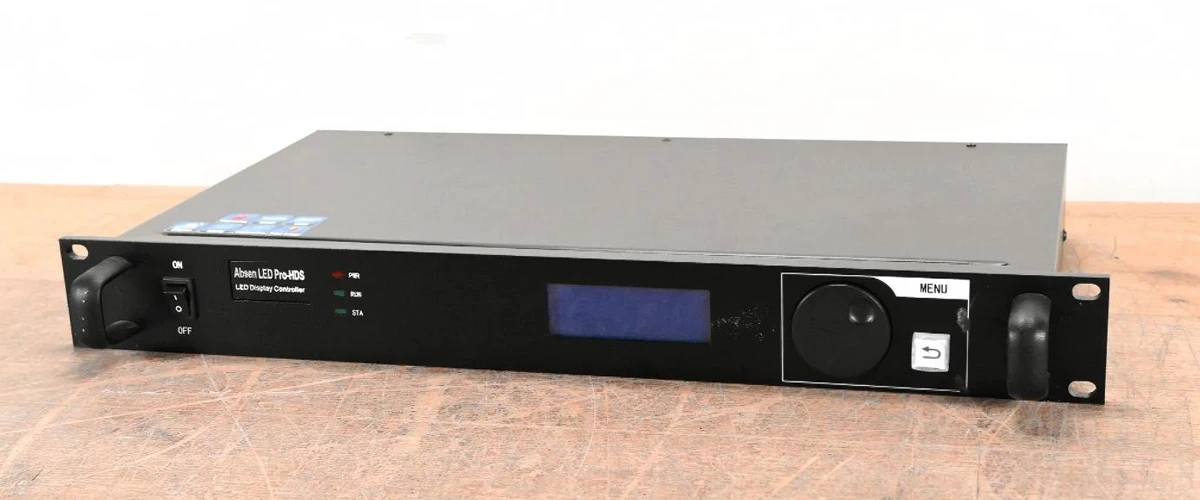
Before you begin, make sure you have these four essential cables ready:
Controller power cable
Network cable (for connecting to the LED screen)
USB cable
HDMI cable
We'll use the VX1000 as our example, but the process is similar for other NovaStar VX series models.
Step 1: Connect the Power Cable
Plug one end of the power cable into the power port on the VX1000 and the other end into a power outlet.
Step 2: Connect the Network Cable
Use a network cable to connect the LED screen to your VX1000. First, plug one end of the network cable into an interface on the LED display cabinet. Then, plug the other end into an output port on the VX1000.
Step 3: Connect the USB Cable
This cable allows your computer to communicate with the VX1000. Plug one end of the USB cable into the VX1000's USB port and the other end into a USB port on your computer.
Step 4: Connect the HDMI Cable
The HDMI cable transmits video content from your computer to the display. Plug one end of the HDMI cable into the HDMI output port of your computer and the other end into the HDMI input port of the VX1000.
Finalizing the Setup
Once all connections are complete, your LED display will mirror the content on your computer screen. You can then use your computer to adjust settings and transmit commands to the LED display through the VX1000 video controller, enabling you to control playback and manage your content.
The connection process for other NovaStar VX series controllers is very similar. Simply choose the correct interfaces and cables for your specific model.
In summary, correctly connecting the power, network, USB, and HDMI cables will enable seamless communication and content display between your computer and the NovaStar VX series video controller.
If you have questions about other NovaStar video processors or need additional assistance, feel free to contact us. We at ChifeLED are ready to help.
Recommended:
Where to download the LED display control Software: https://www.chifeled.com/download.html


Comments